Knotworking and Xero
Xero keeps the ledger. Knotworking owns the operational records, and sends the approved documents to Xero.
Status: tested against a simulated Xero. Acceptance on a live Xero organisation (a Demo Company) is pending.
The Accounting module is off by default. You switch it on when you set it up.
What Knotworking sends
Three kinds of document go to Xero, and only after they are approved or issued.
Supplier bills
An approved purchase invoice becomes one authorised bill in Xero, with tax-exclusive amounts, the supplier's bill number and a link back to the purchase invoice.
Customer invoices
An issued invoice becomes an authorised sales invoice in Xero, with its issued number, dates, link back and tax-exclusive lines.
Customer credit notes
An issued credit note becomes an authorised credit note in Xero. You can allocate it to the original invoice, or leave it as a credit on account.
Supplier bills need Accounting and Purchasing. Customer invoices and credit notes need Accounting and Invoicing, which also needs Customers. Items should stay available to the people who review the coding.
What stays in Xero
Knotworking sends documents. It doesn't try to be an accounting system.
The ledger
Xero keeps the financial ledger and the chart of accounts.
Tax filing
Returns and period close are done in Xero.
Payments
Knotworking records no payments. Xero owns them.
Bank reconciliation
Bank feeds and reconciliation stay in Xero.
Financial statements
Reports are run in Xero.
Contacts and accounts
Knotworking maps to the contacts, account codes and tax types that already exist. It doesn't create them.
Reviewed mappings, then preparation
Nothing is sent on a guess. A person maps each destination and writes down the reason.
Contacts
Each supplier or customer is mapped to an existing Xero contact.
Account codes
Each line is coded to an active Xero account, such as a revenue account for a sale.
Tax types
Each tax rate is mapped to a Xero tax type, and the tax on a line is checked against it.
Before sending, an admin prepares each document. Preparation codes every line and saves an immutable snapshot of the document, so a mapping you change later never alters what was prepared. After the write, Knotworking reads the document back from Xero and compares it with the snapshot.
Set it up
Try it on a Xero Demo Company first. The steps are the same for any organisation.
Create a web app in Xero
In the Xero Developer Portal, create a Web app. To try it first, use a Xero Demo Company with the base currency you intend to use. Register the redirect URI
APP_URL/api/v1/accounting/xero/callback.APP_URLis the web origin only, with no path, and it must stay the same once bills are sent, because each bill links back to it.Set the environment
Add the values below to the API environment, the same on every worker. The secret must be private and at least 32 characters. Name
accountinginKNOTWORKING_MODULES, then restart. Keep Items and Purchasing available to the people who review documents.Connect Xero
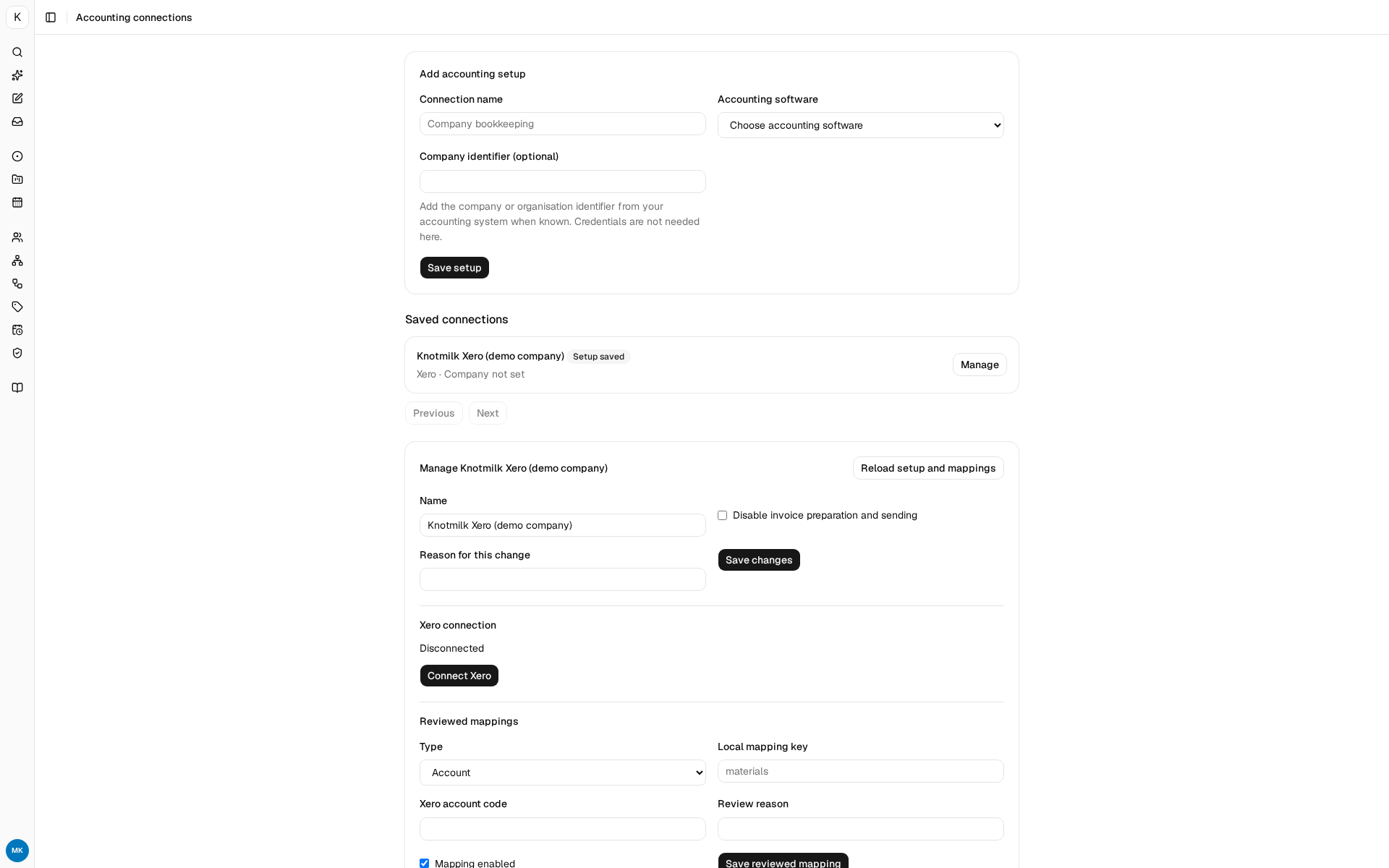
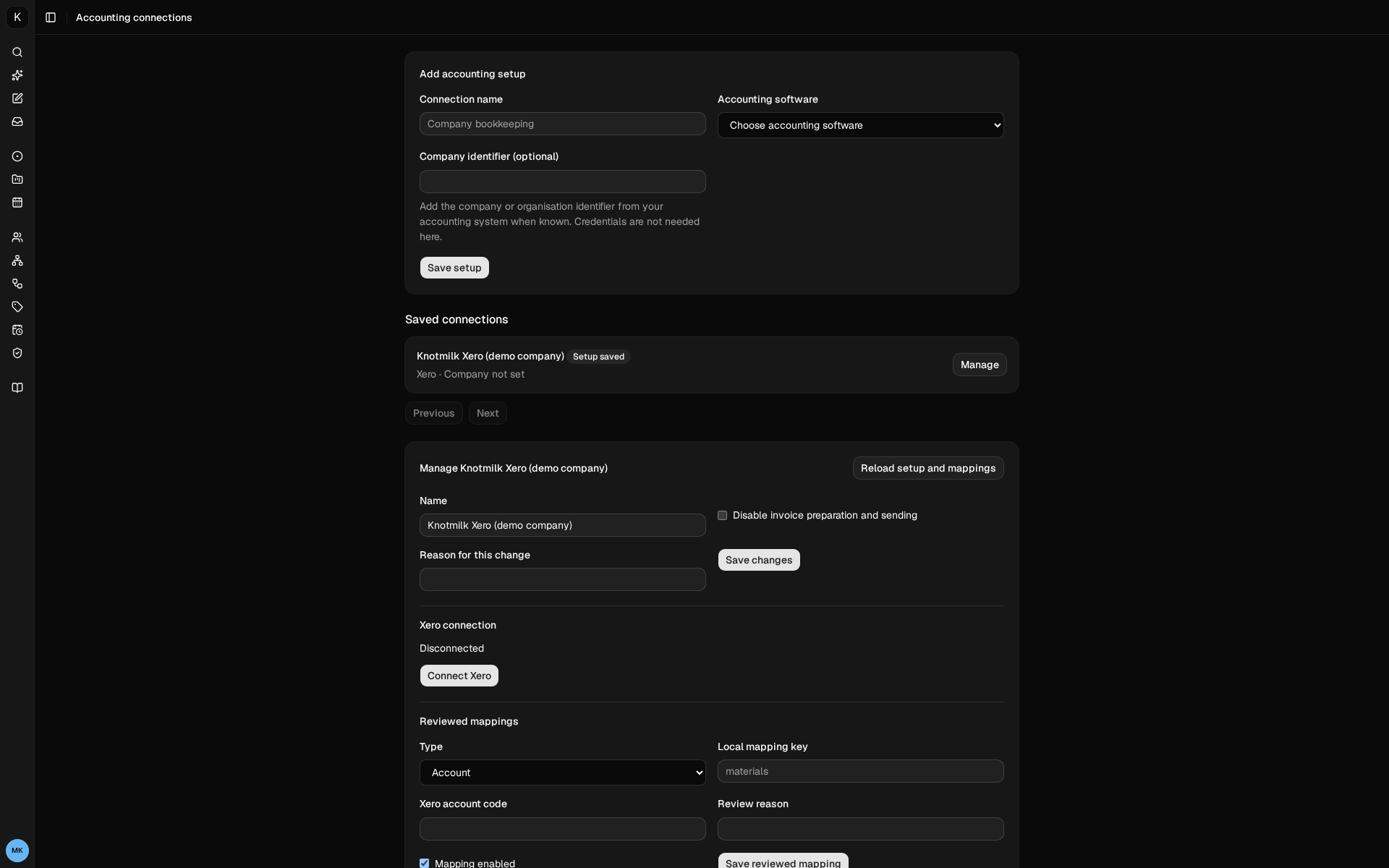
As an owner or admin, open Accounting connections, save a setup and choose Connect Xero. Sign in and authorise the organisation.
Confirm the organisation
Choose Review organisation, compare the name and base currency with the ledger you mean, then choose Confirm organisation and currency. The currency must match the workspace currency. Use Verify connection to check it again later.
Save the reviewed mappings
Map the contacts, account codes and tax types you will use, and write down why for each.
Prepare and send
Prepare the approved invoice, issued invoice or credit note, then send it from the accounting queue. Choose Send now, or let the dispatcher send it.
XERO_CLIENT_ID=your-xero-client-id
XERO_CLIENT_SECRET=your-xero-client-secret
BETTER_AUTH_SECRET=a-private-value-of-at-least-32-characters
KNOTWORKING_MODULES=all   # or your list, with accounting named
Scopes requested
offline_accessaccounting.invoicesaccounting.settings.readaccounting.contacts.read
Every setting is listed under Xero in the configuration docs.
If something goes wrong
A bill is never sent twice by accident, and a lost reply is never guessed at.
One key per posting
Every attempt sends the posting's own ID as Xero's idempotency key, so a retry can't create a second bill.
A lost reply is never resent
The posting is recorded as needing checking before Knotworking calls Xero. If the reply is lost or the server stops, it stays there and is never sent again by itself.
Find and verify in Xero
From a posting that needs checking, an admin looks it up in Xero by its reviewed contact, date and source link, or enters the Xero invoice ID. It must match exactly one document and pass a full read-back. The check only reads.
Read-back after every write
Knotworking reads the document back from Xero and compares identity, dates, contact, currency, totals and line coding before it marks the posting as posted.
Rate limits
If Xero returns a rate limit on the create call, nothing was written. The document goes back to the queue and is sent later with the same key.
Reconnect, pause and disconnect
If Xero revokes consent or disconnects the organisation, the setup shows Reconnect required and documents stay queued. Pausing or disconnecting keeps the posting history, and reconnecting the same organisation resumes it.
Connecting, confirming and disconnecting are for signed-in owners and admins with Accounting manage access. Personal API tokens and MCP are refused.
What it isn't
Be clear about the edges before you rely on it.
No ledger
Knotworking has no general ledger. Xero keeps it.
No payments or bank reconciliation
It records no payments and does no bank reconciliation.
Xero only
No other accounting system is connected. The framework allows more, but Sage and QuickBooks adapters aren't built.
Supplier credit notes aren't posted
Only supplier bills, customer invoices and customer credit notes are sent. A corrected supplier invoice that was already posted is refused, so record the correction in Xero.
Currency must match
The Xero organisation's base currency must match the workspace currency and use two decimal places. There is no currency conversion.
Whole-line credits only
A customer credit note reverses whole invoice lines. Partial-line credits aren't supported.
Questions
- Is the Xero connection live?
- Not yet proven on a live organisation. It's tested against a simulated Xero, and acceptance on a live Xero organisation (a Demo Company) is still pending. The Accounting module is off by default, so try it on a Demo Company first.
- Does Knotworking replace Xero?
- No. Xero keeps the ledger, tax filing, payments, bank reconciliation and financial statements. Knotworking keeps the operational records and sends approved documents to Xero.
- Does it create contacts and accounts in Xero?
- No. You map each supplier and customer to an existing Xero contact, and each account code and tax type to an existing one, and write down why. Knotworking never creates them.
- What if Xero doesn't answer when a document is sent?
- Knotworking records the document as needing checking before it makes the call, and it never sends that document again by itself. An admin chooses Find and verify in Xero, which looks the document up without writing anything.
- Does it work with Sage or QuickBooks?
- No. Xero is the only accounting system Knotworking connects to today. The framework is built so other systems could be added, but no other adapter exists.
Up and running this afternoon.
Clone it, set a few values and start it with Docker. Caddy, the web app, the API and Postgres come up together on your own machine. There's no account with us and no per-seat bill.
git clone https://github.com/knotworking-oss/knotworking.git
cd knotworking && cp deploy/env.example deploy/.env
docker compose --env-file deploy/.env up -d --build
Set up Knotworking ERP using the instructions in this Markdown file.
https://knotworking.dev/docs/agent-install.md